Scratch
Beginner
60 mins
Teacher/Student led
+100 XP

What you need:
Chromebook/Laptop/PC or iPad/Tablet

Snowflake Catch

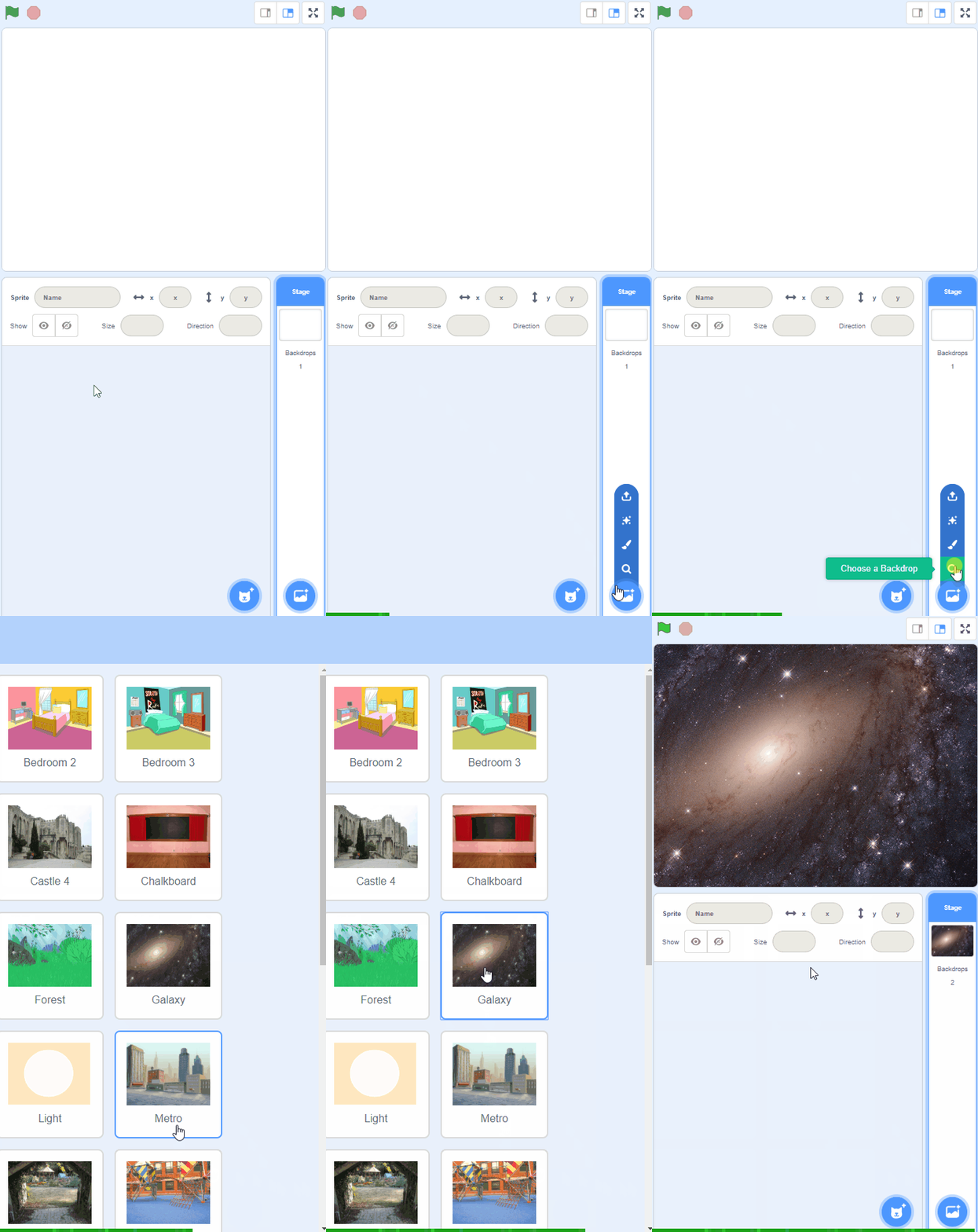
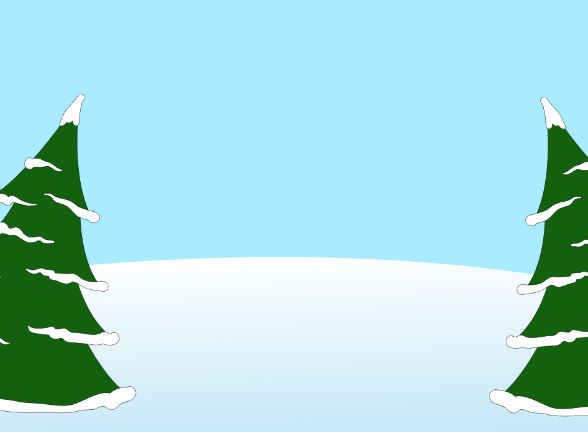
Get started with a fun Scratch project! Begin by creating a new project, deleting the cat sprite, and adding a winter backdrop. Then, add a Reindeer sprite and start coding to move it left and right.

Learning Goals Learning Outcomes Teacher Notes

Teacher Class Feed

Load previous activity

    1 - Introduction

    Welcome to our festive Christmas game! In this lesson, we will create a fun Scratch game where you control a reindeer to catch falling snowflakes. 
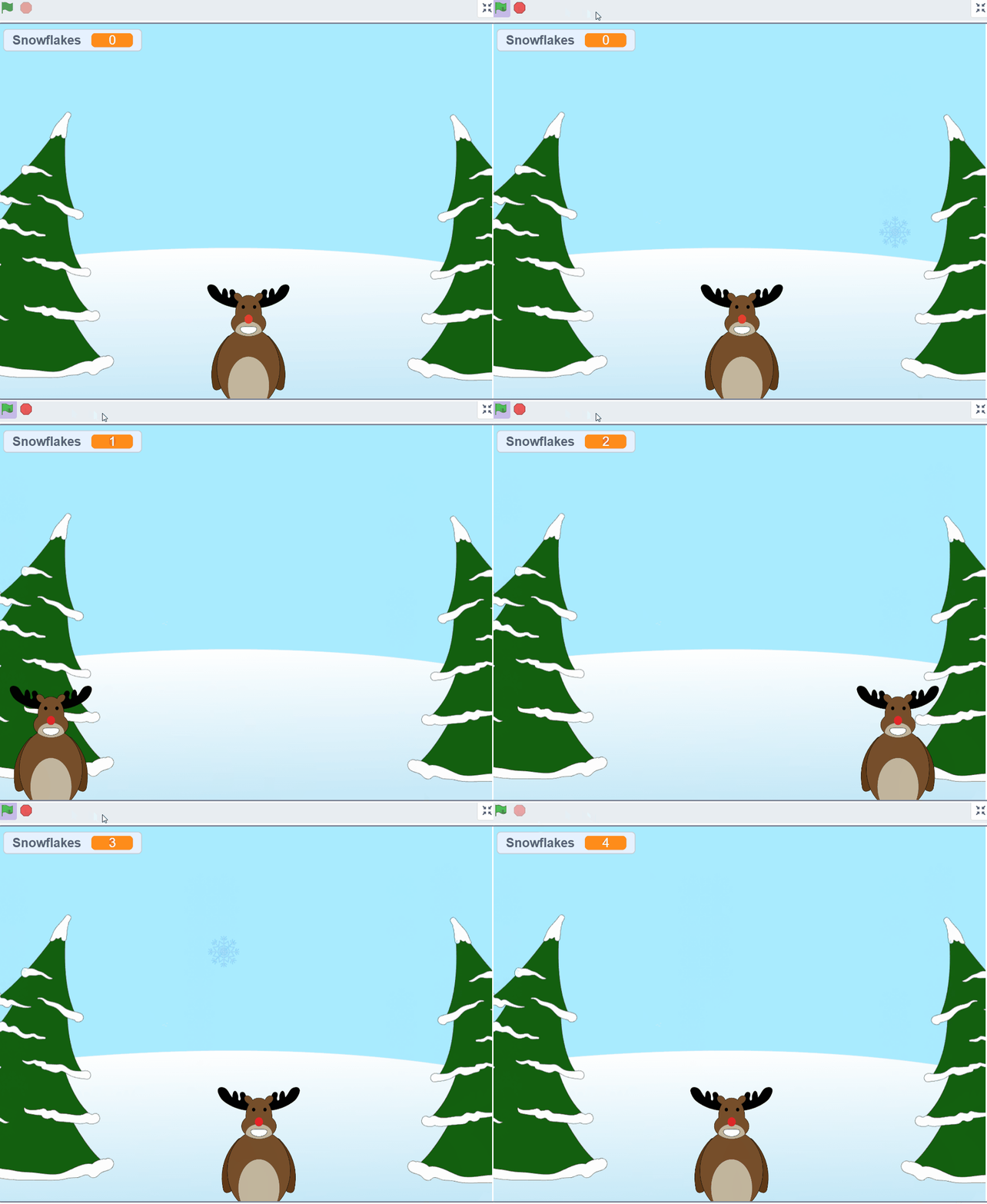
    Let’s get started and make it snow! This project will teach you important coding skills like using events, motion blocks, sensing blocks, and control blocks.

    By the end of the lesson, you’ll have a working game and understand how clones work in Scratch to create multiple snowflakes.

    Have fun coding your Christmas game!

    2 - Create a new Scratch project

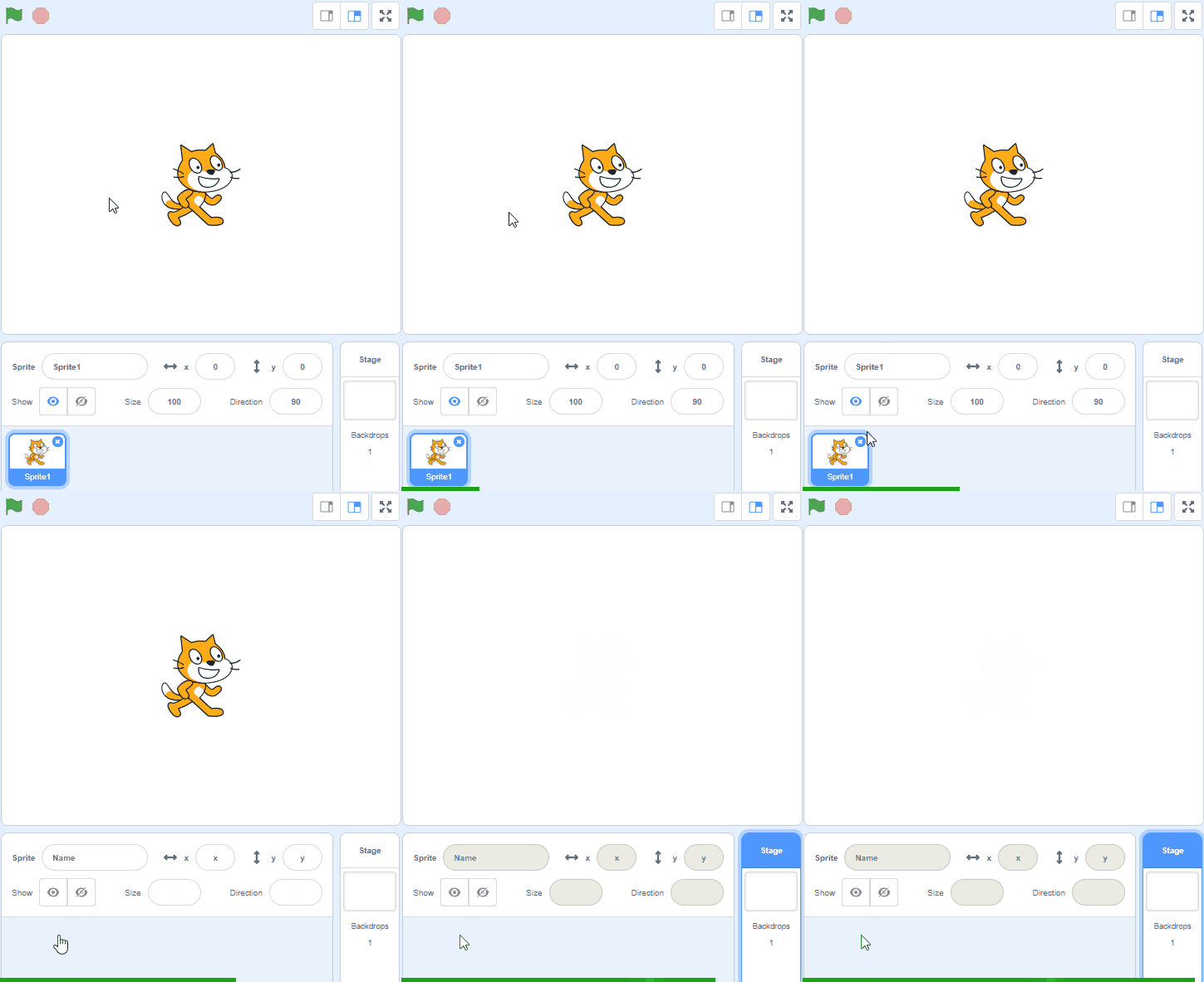
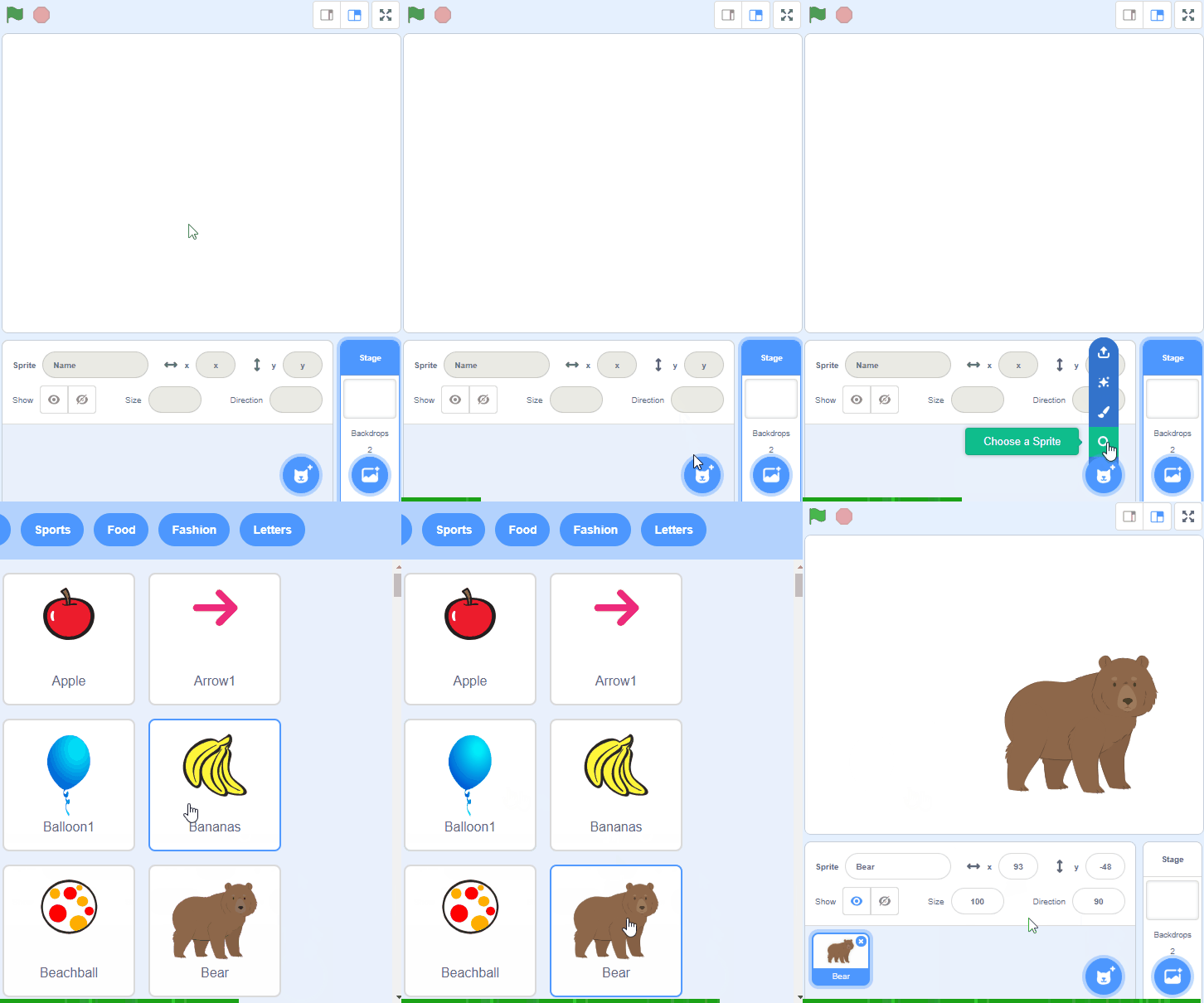
    Go to Scratch and click on Create to start a new project. This will open a blank Scratch stage with a default cat sprite.

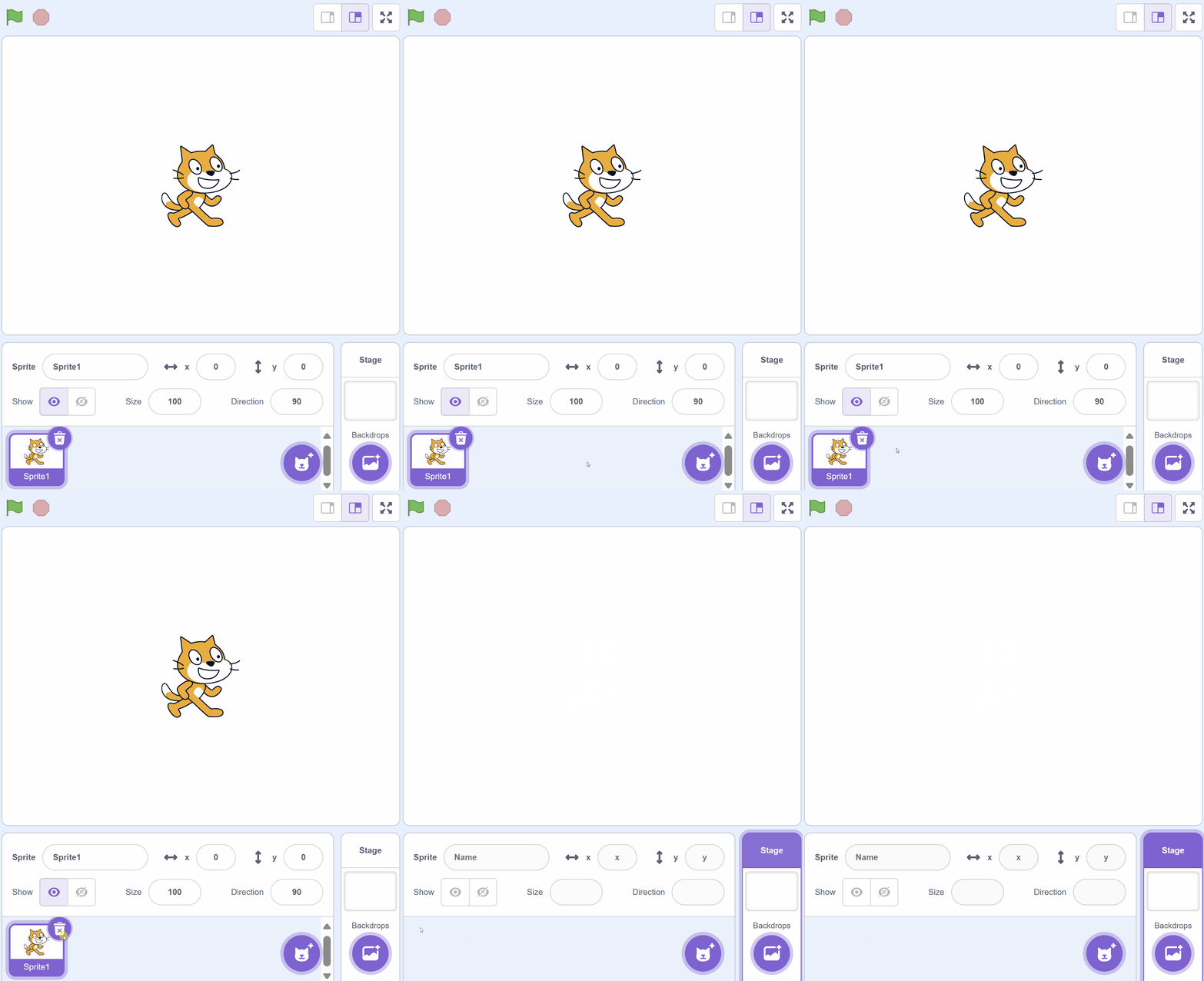
    Click on the cat sprite in the sprites pane to select it. Then, click the trash can icon in the grey area around the sprite thumbnail to delete the cat sprite. Your project is now ready for the Christmas game!

    3 - Add the Winter Backdrop

    test

    4 - Add the Reindeer sprite

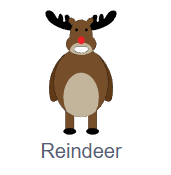
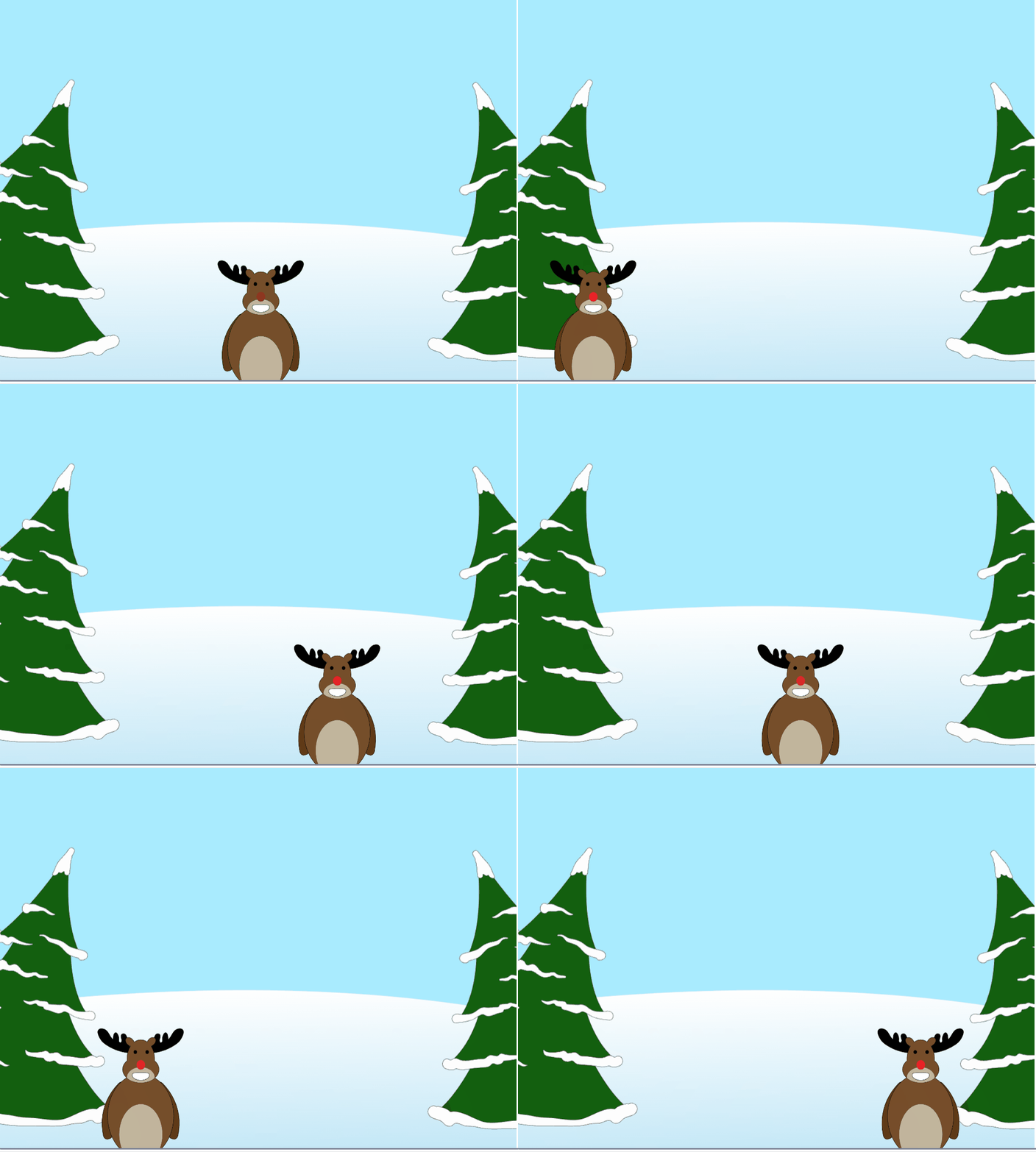
    In the game we will move the Reindeer left and right at the bottom of the stage to try and catch falling Snowflakes.

    Add the Reindeer sprite from the sprite library and give it the following code.

    when green flag clicked go to x (0) y (-140) // place it at the middle bottom forever if < key (left arrow v) pressed? > then change x by (-10) // move left end if < key (right arrow v) pressed? > then change x by (10) // move right end end

    Click on the green flag and you should be able to move the reindeer left and right using the arrow keys on your keyboard.

    5 - Add the Snowflake sprite

    Unlock the Full Learning Experience

    Get ready to embark on an incredible learning journey! Get access to this lesson and hundreds more in our Digital Skills Curriculum.

    Copyright Notice
    This lesson is copyright of DigitalSkills.org 2017 - 2025. Unauthorised use, copying or distribution is not allowed.

    Scratch is developed by the Lifelong Kindergarten Group at the MIT Media Lab. It is available for free at https://scratch.mit.edu
    πŸͺ Our website uses cookies to make your browsing experience better. By using our website you agree to our use of cookies. Learn more