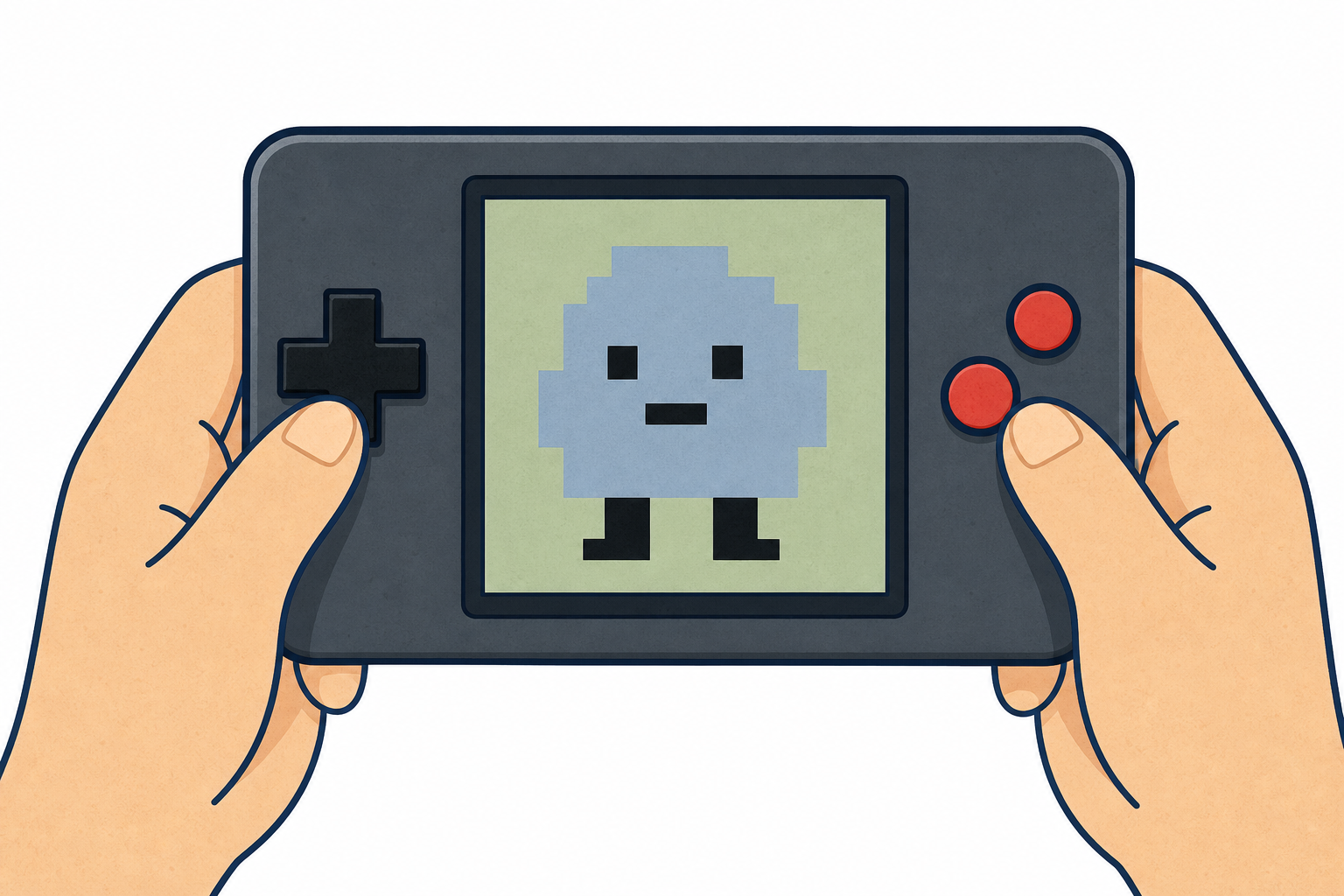
 Every game you've ever played started as a plan in a programmer's head — a list of steps, or an algorithm, for what should happen on screen. Game makers decide things like What is the hero? How does it move? How does the player score? before they write a single block.
Today you become that game maker. We're going to plan a simple catching game and then build a first working version in MakeCode Arcade: a character you can create, design and move around the screen. Watch the board first, then build it yourself and run it to see your code come to life.
MakeCode Arcade is a fun and easy-to-use tool that lets us create our own arcade games. It's like a digital playground where we can build and play games right in our web browser.
With MakeCode, we can use colourful blocks to build our games, just like Scratch.
If you have a small handheld gaming computer like the BrainPad or GameGo, you can even put the games you make onto it and play them anywhere!
.png)
 Imagine the MakeCode Arcade code editor as a magical toolbox. It's a lot like the Microbit and Scratch editors you might have used before. Here's what it has:
- A simulator, which is like a mini TV screen where you can watch your code come to life and play the games you create.
- A toolbox, which is like a chest full of different code blocks. These blocks are sorted into groups so you can easily find what you need.
- A code area, which is like your construction site. This is where you build your code.
.jpg)
Let's create our first project!
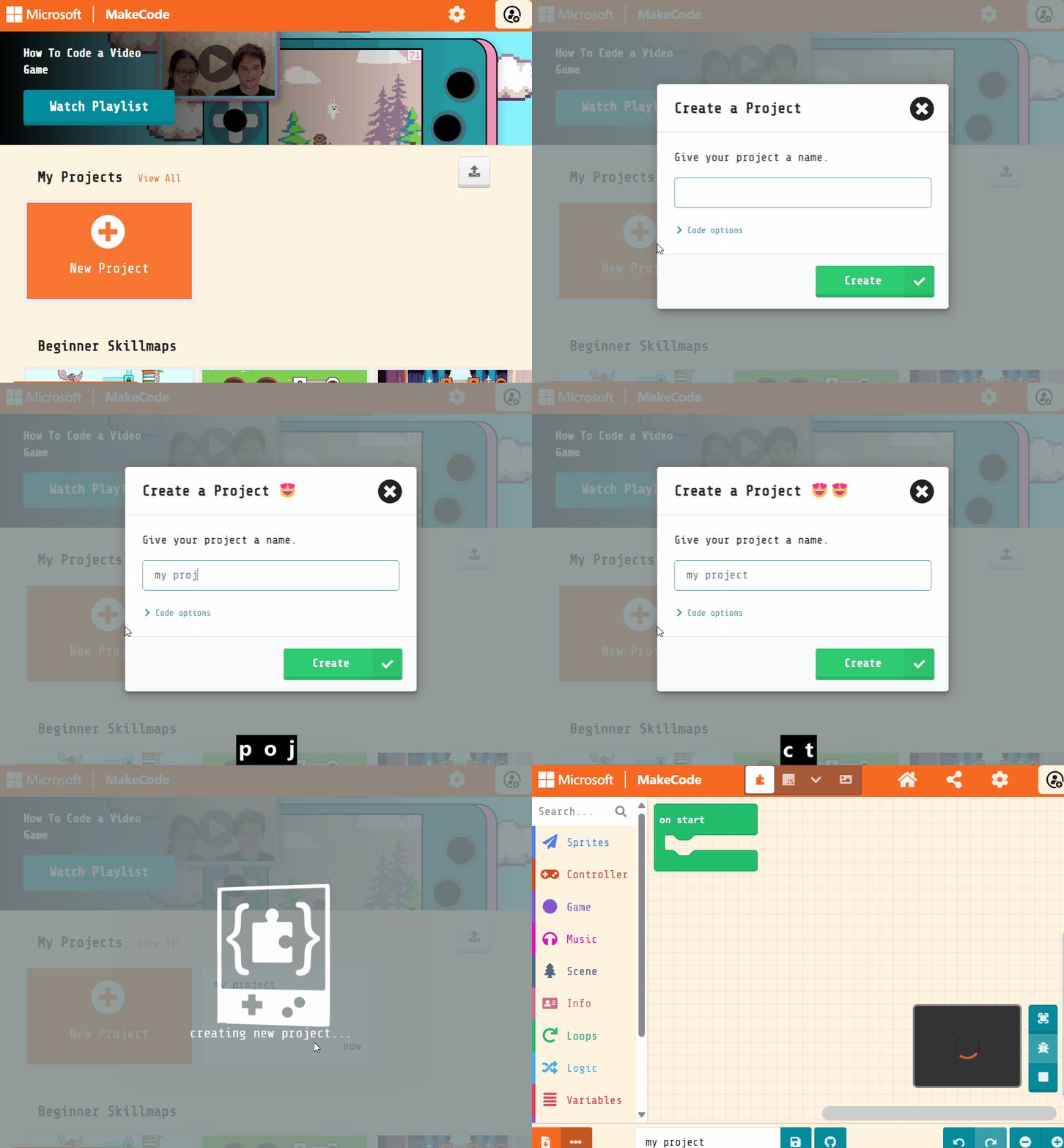
Go to the Arcade MakeCode website and create a new project. You can call your project anything you want!
Create a new Arcade project using the makecode.com website.

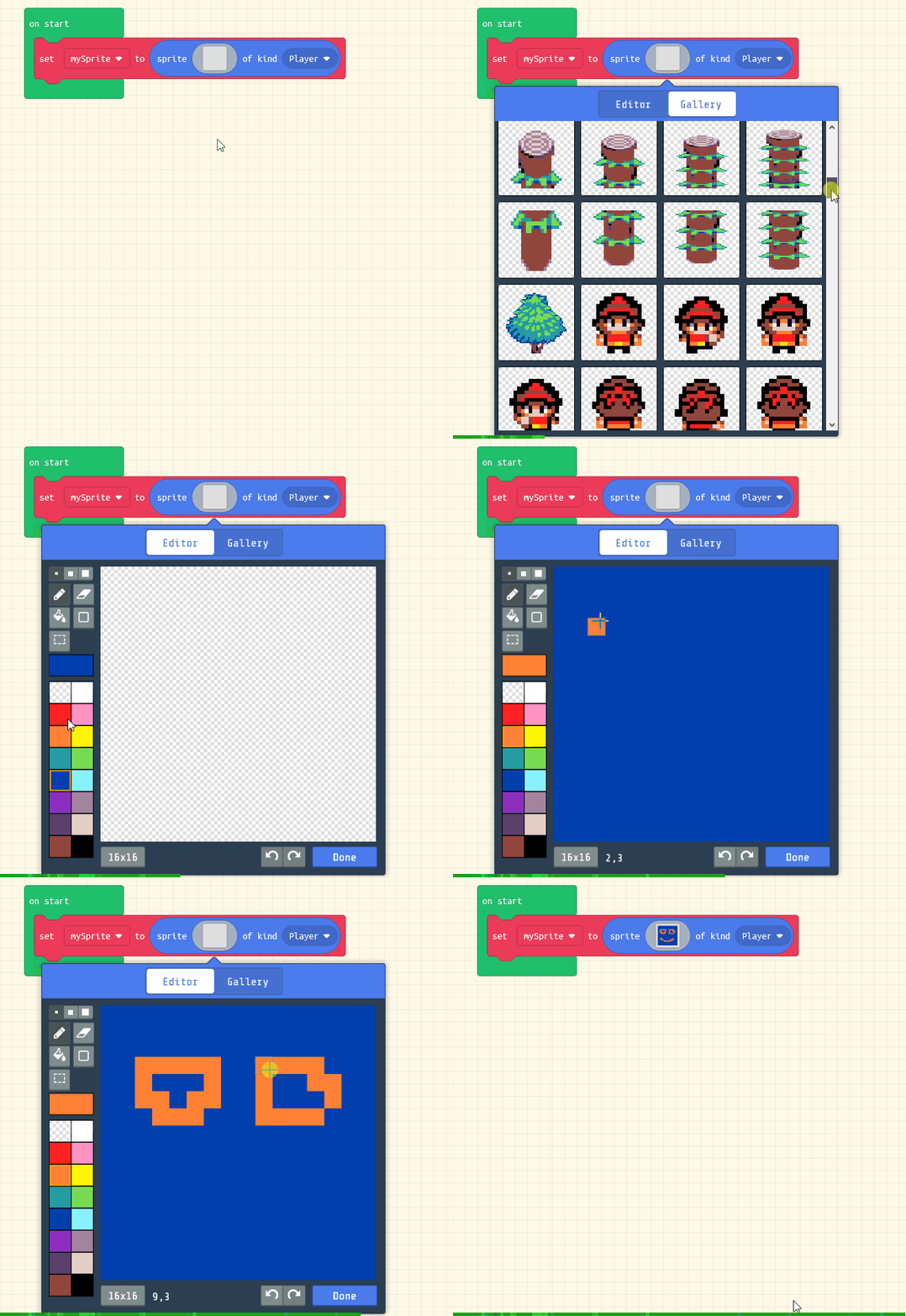
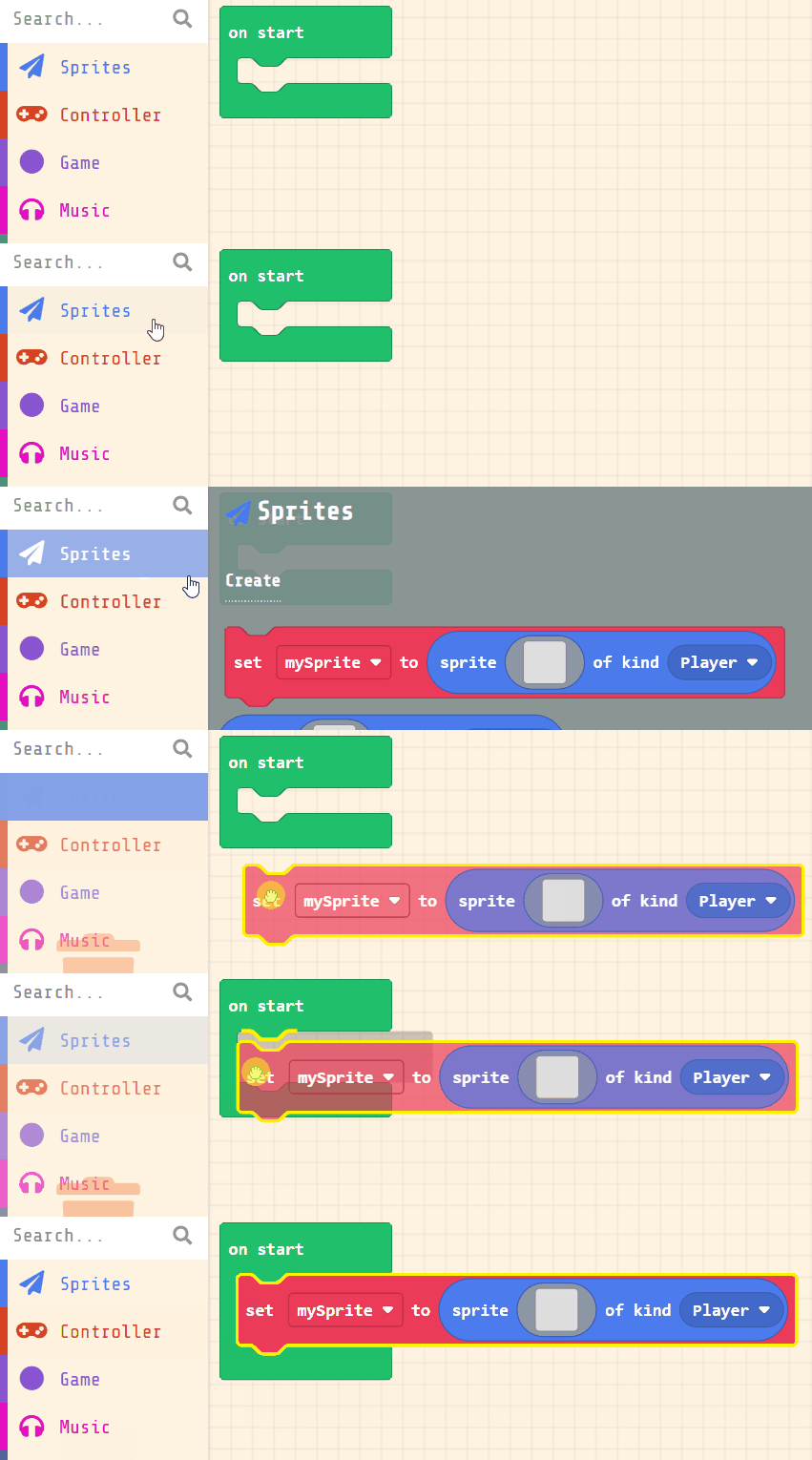
Every character in an arcade game is a sprite: a small picture the program can move around the screen and keep track of. Let's create the sprite that will be the hero of our game. Add the following code:
let mySprite = sprites.create(img`
    . . . . . . . . . . . . . . . .
    . . . . . . . . . . . . . . . .
    . . . . . . . . . . . . . . . .
    . . . . . . . . . . . . . . . .
    . . . . . . . . . . . . . . . .
    . . . . . . . . . . . . . . . .
    . . . . . . . . . . . . . . . .
    . . . . . . . . . . . . . . . .
    . . . . . . . . . . . . . . . .
    . . . . . . . . . . . . . . . .
    . . . . . . . . . . . . . . . .
    . . . . . . . . . . . . . . . .
    . . . . . . . . . . . . . . . .
    . . . . . . . . . . . . . . . .
    . . . . . . . . . . . . . . . .
    . . . . . . . . . . . . . . . .
    `, SpriteKind.Player)
Click on the gray box in the sprite block to open the Editor. You can choose a sprite from the Gallery or you can paint your own sprite using the Editor.
Unlock the full learning experience
You're previewing this lesson. Get full access to this lesson and hundreds more — each one ready to teach, with interactive activities, printable resources and pupil progress tracking built in.
This lesson is copyright of DigitalSkills.org 2017 - 2025. Unauthorised use, copying or distribution is not allowed.