Intermediate
40 mins
Teacher/Student led
+70 XP
Pupils work on their own device
 Chromebooks, laptops, and PCs are crucial tools for coding and digital skills education. Chromebooks are ideal for web-based applications and collaborative projects, while laptops and PCs support a wider range of programming environments and software for more intensive tasks like software development and data analysis.
Editing Images with Canva, Part 1: Crop, Resize and Adjust
Students set up a canvas in Canva, place an image, crop and resize it, and adjust it with filters, brightness and contrast. This lesson counts towards outcome 3.8: students use these editing skills to build their digital montage in the montage lessons that follow.
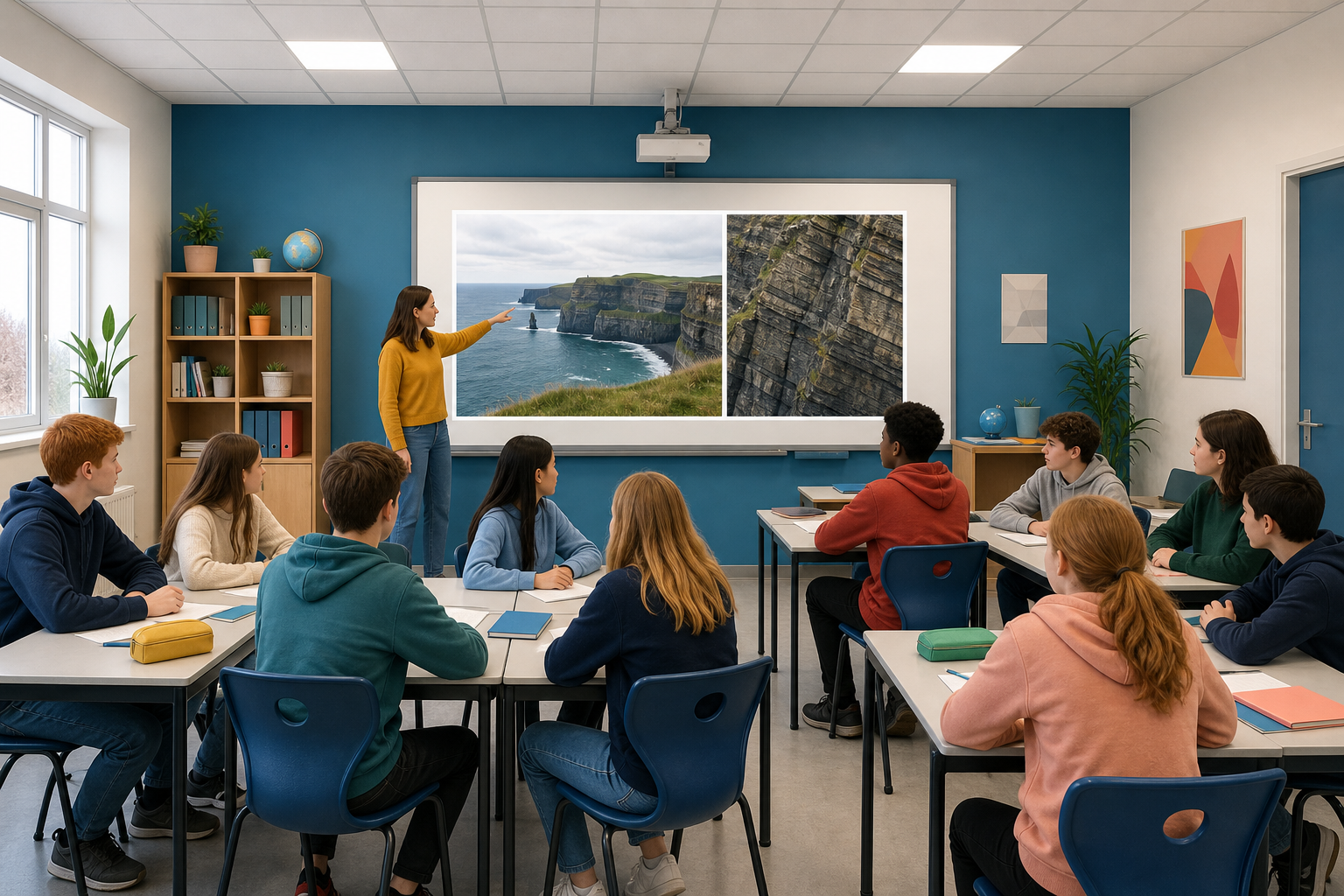 You are about to see the same photograph twice: once cropped in tight on one detail, and once wide. Look at Version 1 first and decide what it tells you happened, then look at Version 2.