Scratch
Beginner
40 mins
Teacher/Student led
 Chromebooks, laptops, and PCs are crucial tools for coding and digital skills education. Chromebooks are ideal for web-based applications and collaborative projects, while laptops and PCs support a wider range of programming environments and software for more intensive tasks like software development and data analysis.
Broadcasting Signals: Triggering Actions Like a Pro
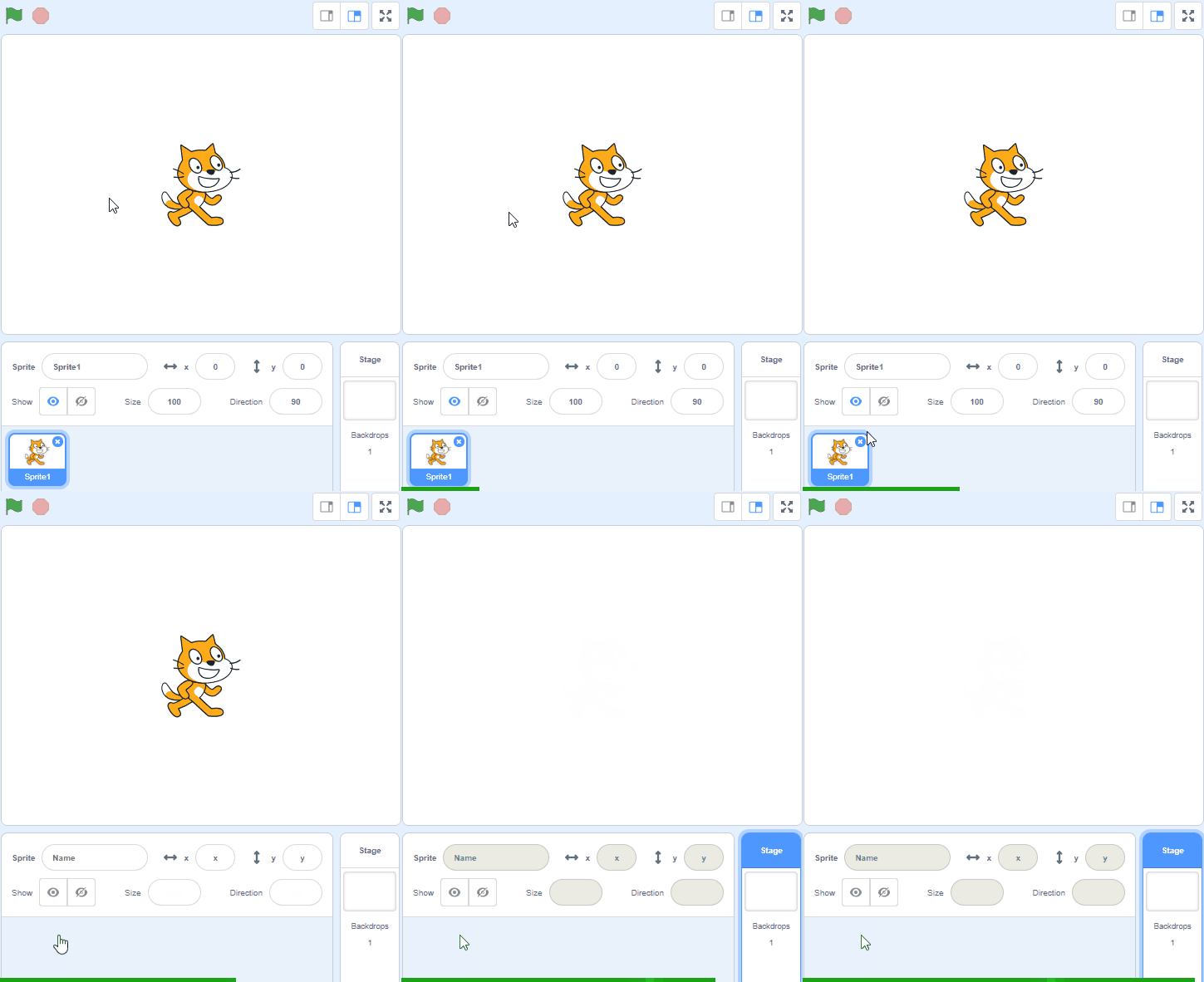
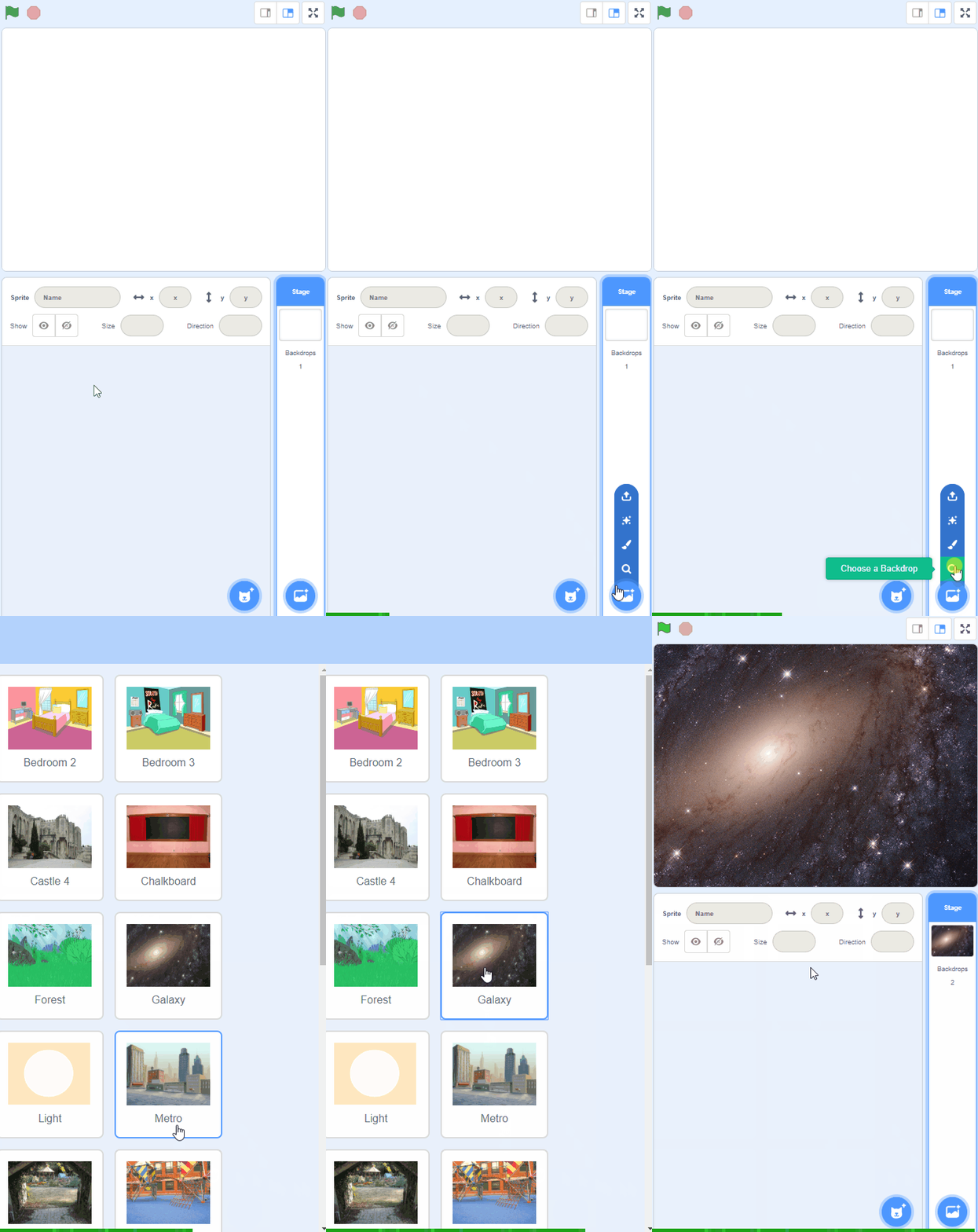
In this lesson, you'll learn to use broadcasts in Scratch to control events in a fairy tale project. Follow steps to create a scene with characters interacting seamlessly, triggering actions for a smooth, engaging story flow.
.png)
.png)