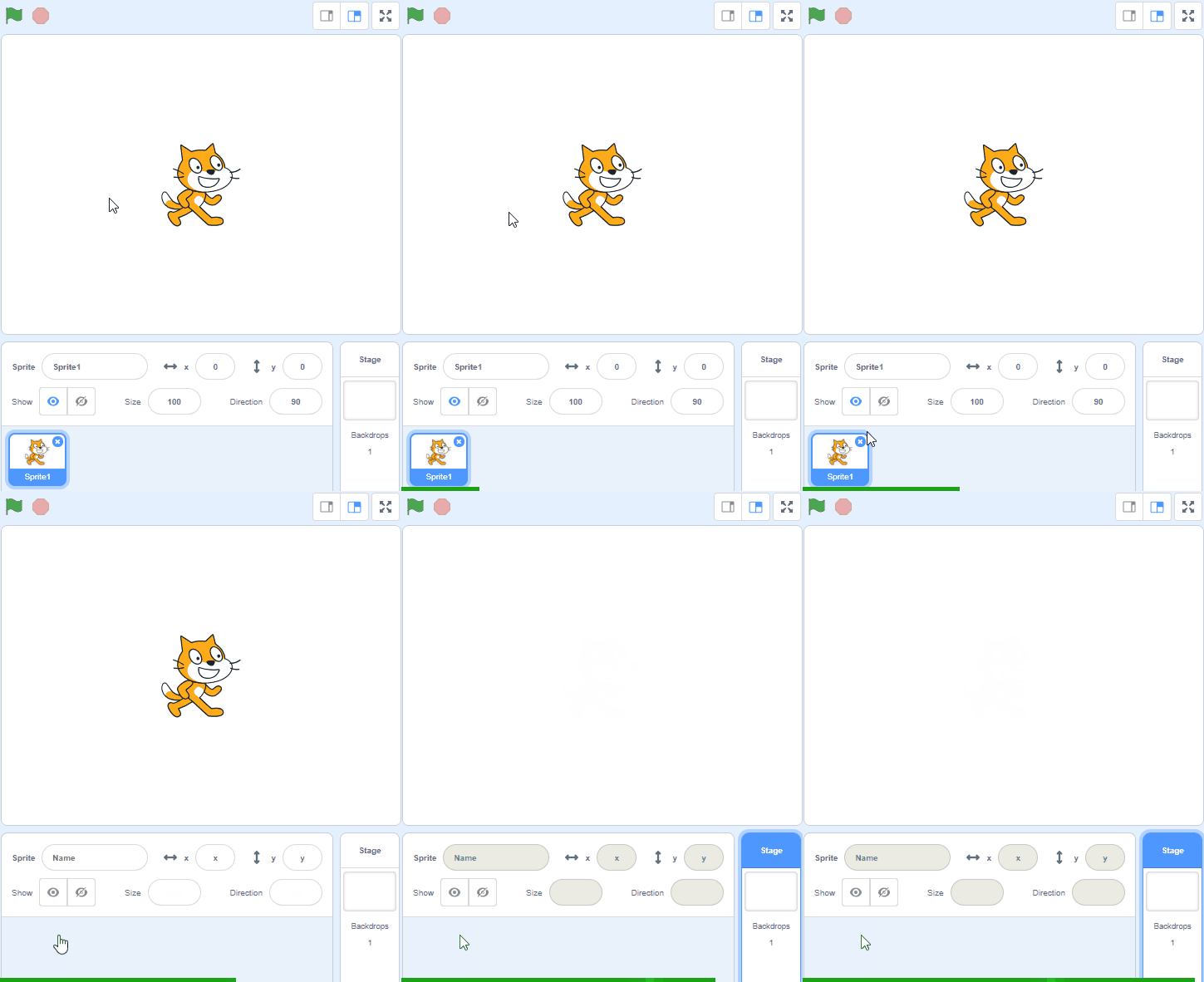
Let's start by creating a new Scratch project. First, go to the Scratch website by clicking here.
Once you're on the Scratch website, click on 'Create' to start a new project. You will see a cat sprite on the screen. We don't need the cat for this project, so let's remove it.
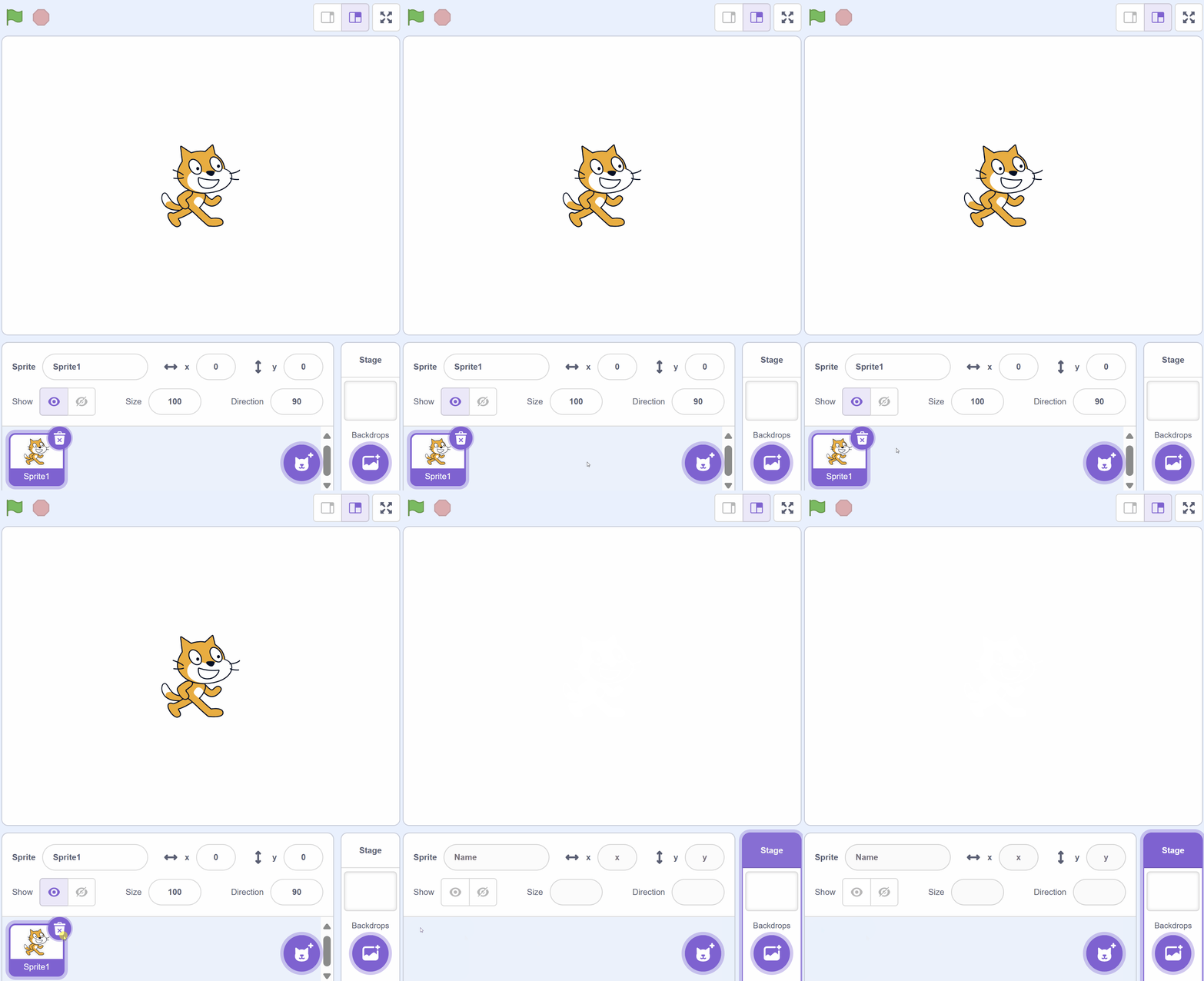
To remove the cat, look at the sprite list under the stage, where the cat has its own small picture. Click that picture, then click the small bin icon at its top-right corner.
Go to the Scratch website using the link below and click on the 'Create' link in the blue bar at the top.
By default, each new project starts with the cat sprite already added. To delete the cat click on the x in the blue circle beside the cat in the sprite list.
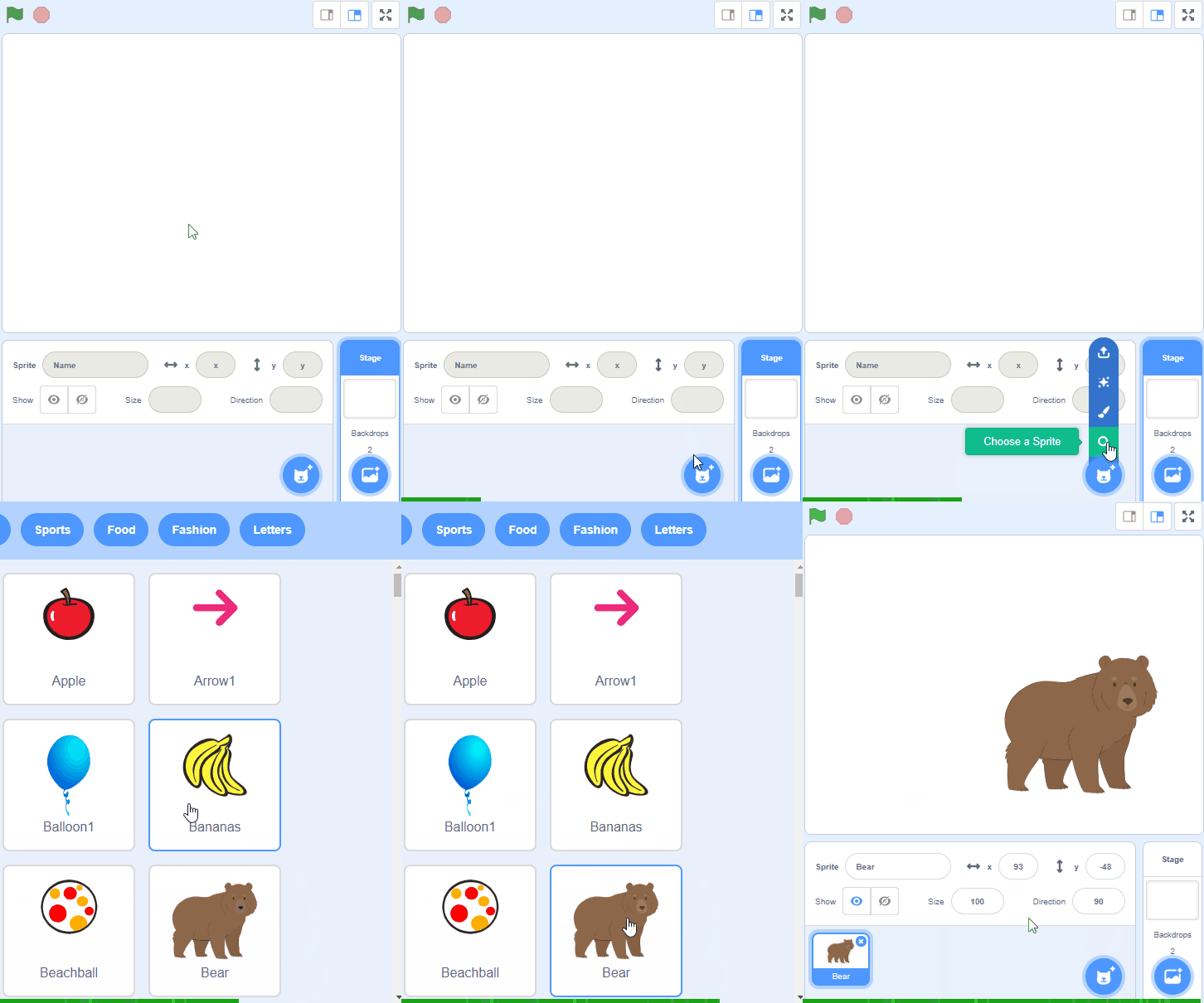
Let’s start by adding a character to your project. Click the Choose a Sprite button (the cat face at the bottom right of the sprite list) and find a character with lots of costumes. Costumes are different pictures of the same character.
We recommend Anina Dance, Ballerina, Cassy Dance or Champ99.
Once you’ve selected your character, they’ll appear on your stage.
To add a sprite from the sprite library follow these steps:
You can use search box or the filter links (Animals, People, Fantasy etc) to locate your sprite.
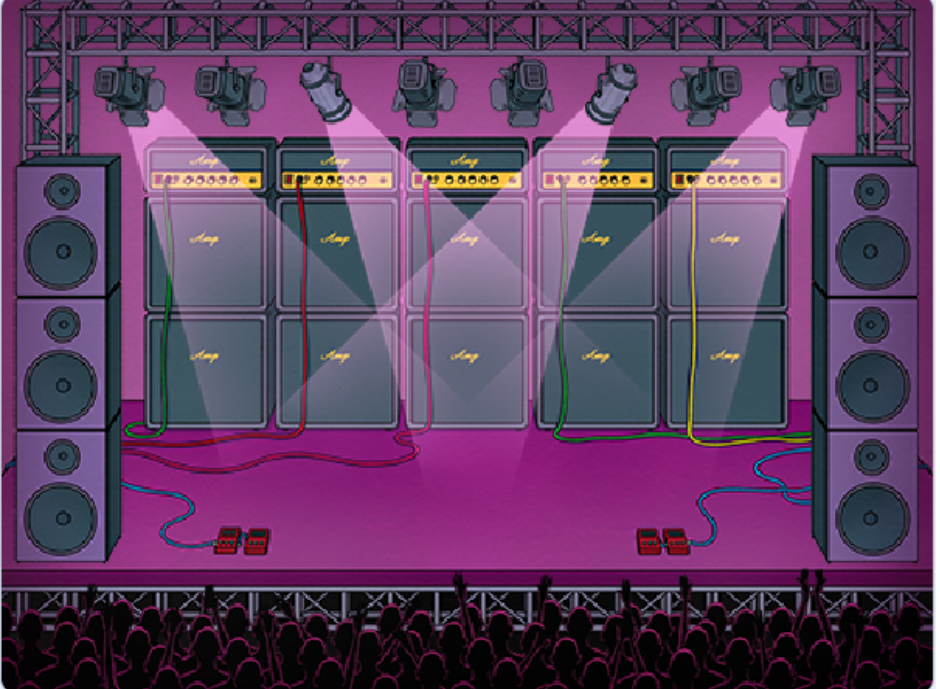
To make the dance more exciting, we’re going to add a stage background. In Scratch this is called a backdrop.
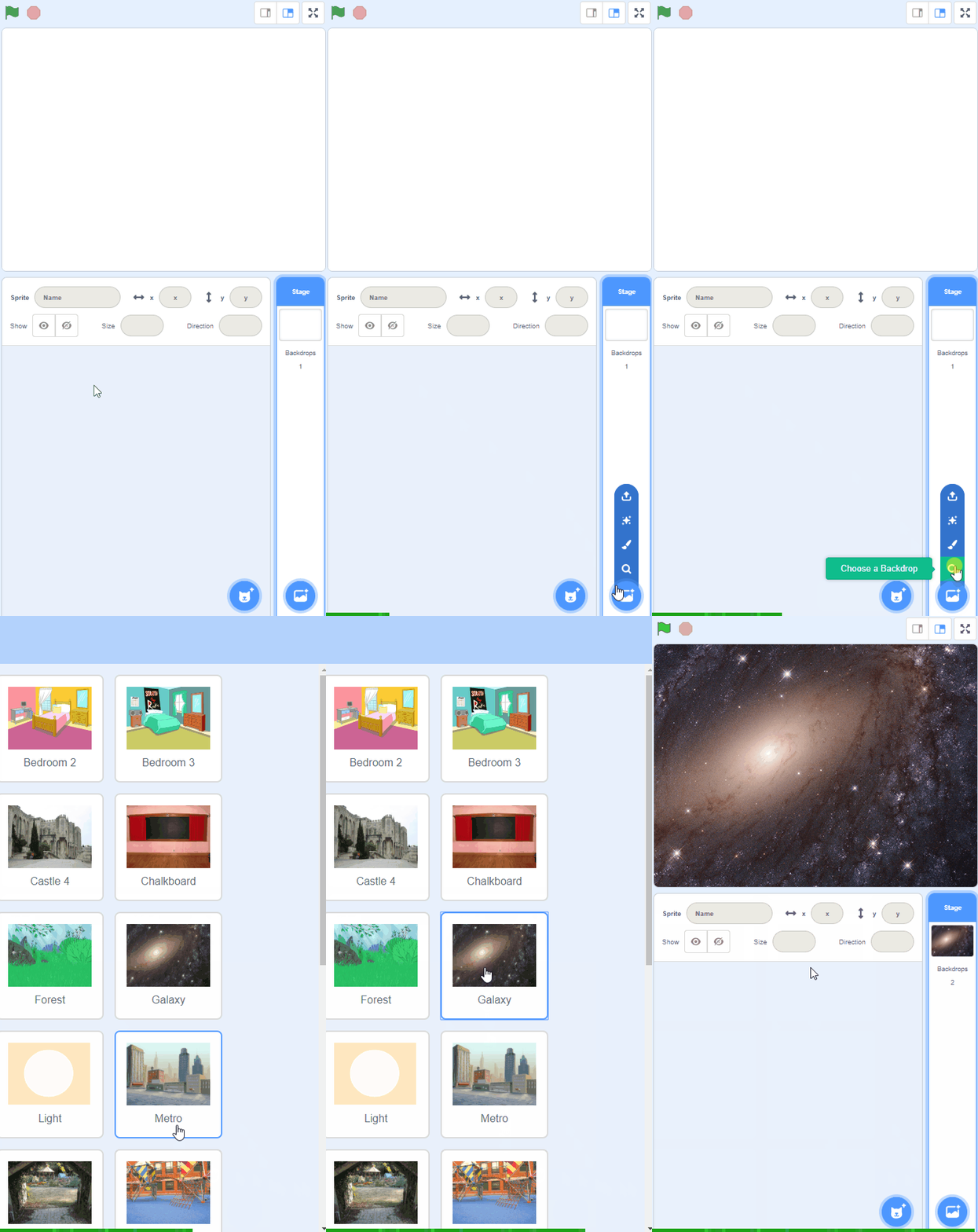
Click the Choose a Backdrop button at the bottom right of the screen, under the stage. This opens the backdrop library. Scroll down until you find the Concert backdrop and click on it. The stage now looks like a concert stage, ready for a dance.
This gives your character a great place to show off their moves!
To add a backdrop from the backdrop library follow these steps:
You can use search box or the filter links (Fantasy, Music, Sports etc) to locate your backdrop.
Some characters have multiple costumes. You can find these by clicking the 'Costumes' tab next to the 'Coding' tab in the top left hand of your screen.
We’re going to use those costumes to create the animation.
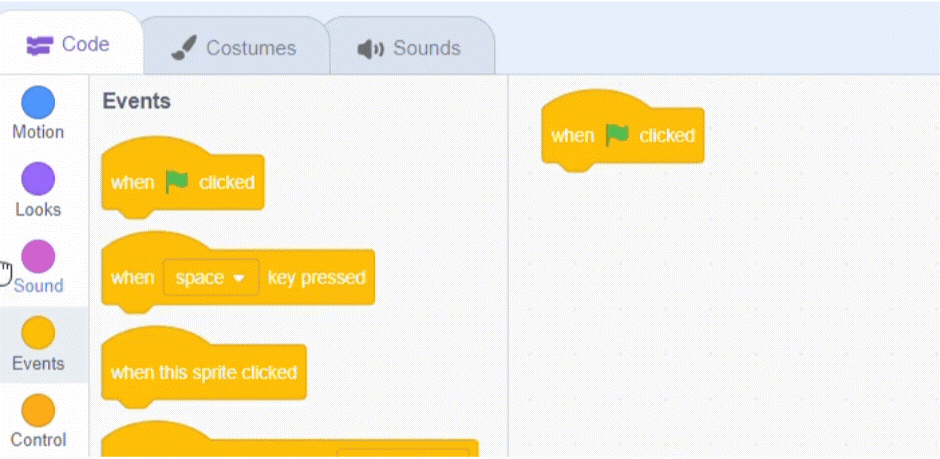
Begin by dragging the "when green flag clicked" block from the Events section into the coding area. Drag the "next costume" block from the Looks section and place it under the green flag block. This block will tell your sprite to switch to the next costume.
when green flag clicked
next costume
You're previewing this lesson. Get full access to this lesson and hundreds more — each one ready to teach, with interactive activities, printable resources and pupil progress tracking built in.